
 Real Estate Construction
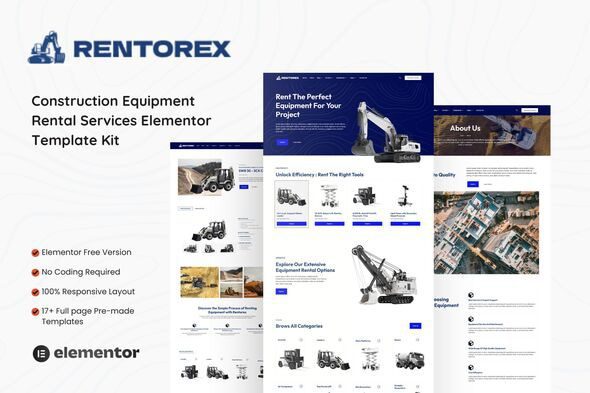
Rentorex – Construction Equipment Rental Elementor Template Kit
1 Year
Updates
Rentorex – Construction Equipment Rental Services Elementor Template Kit – your go-to solution for creating a powerful online presence. Designed for the modern era, this template kit caters to construction equipment rental businesses striving for excellence with a sleek, user-centric digital platform.
This is not a WordPress theme. Template Kits contain page content for Elementor page builder. This kit has been optimized for use with the free Hello Elementor theme but may be used with most themes that support Elementor.
Template Features:
- Built With Elementor Free
- 100% Responsive & mobile-friendly Modern design
- No Coding Knowledge Required
- Easy & Fully Customizable
What’s Included:
- Global Style
- Home
- About
- Careers
- Blog
- Single Blog
- Services
- Single Service
- Categories
- Category Display
- Equipment Details
- Our Team
- Contact
- FAQs
- 404 Page
- Header
- Footer
- Metform Contact Us
- Metform Newsletter
Plugins installed with kit:
- ElementsKit Lite
- Metforms
- LA Studio Kit
How to Use Template Kits: This is not a WordPress Theme. Template kits contain the design data for Elementor only and are installed using the envato Elements plugin for WordPress or directly through Elementor.
Elementor Template Kits use the Envato Elements plugin to install.
Detailed Guide:
For further support, go to Elementor > Get Help in WordPress menu.
Setting Header & Footer for Entire site In ElementsKit:
To set Header:
1.go to ElementsKit > Header Footer
2.Edit the header with Elementor and change the content by clicking on the Element logo & selecting Header template from template kit that you imported & Update/Save the changes.
3.Now go back to ElementsKit > Header Footer & click on Edit below Header & On Popup Settings set Conditions > Entire Site & Activate Toggle button
To set Footer:
1.go to ElementsKit > Header Footer
2.Edit the Footer with Elementor and change the content by clicking on the Element logo & selecting Footer template from template kit that you imported & Update/Save the changes.
3.Now go back to ElementsKit > Header Footer & click on Edit below Footer & On Popup Settings set Conditions > Entire Site & Activate Toggle button.
How to Import Metforms If you have Elementor Pro, skip install of Metform and form blocks.
- Import the metform block templates
- Import the page template where the form appears and right-click to enable the Navigator
- Locate and select the Metform widget and click Edit Form. Choose New, then Edit Form. The builder will appear
- Click ‘Add Template’ grey folder icon.
- Click ‘My Templates’ tab.
- Choose your imported metform template, then click ‘Insert’ (click No for page settings).
- Once the template is loaded, make any desired customizations and click ‘Update & Close’ The form will appear in the template
- Click Update
Images: All images are free to use under CreativeCommons0 license from Pexels & Unsplash.
Frequently Asked Questions
Review the listed version, filename and any file-verification details provided before installing the file.
When a newer file is available, you can download it from your account during your access period. Check the version shown on the product page.
GPL-covered code can generally be used on multiple sites. Check separately licensed images, other assets and vendor services before use.
Check the license terms that apply to each product. WPTemplateKit is an independent redistribution service and does not include an official developer license or support.
Related Products


Wait! Become a member and download it all
Instead of paying 3.99 € for just this file, join the Club and download it — plus the entire catalog — with unlimited downloads while your membership is active.
Or try everything first with the 24-Hour Pass — 4.99 €
Special for you
Still thinking it over?
Take the 24-Hour Pass and try everything for just 4.99 €: this file and the entire catalog, with full member access for 24 hours. One-time payment — no subscription, nothing to cancel.
Try 24 hours for 4.99 €