
 Business Services
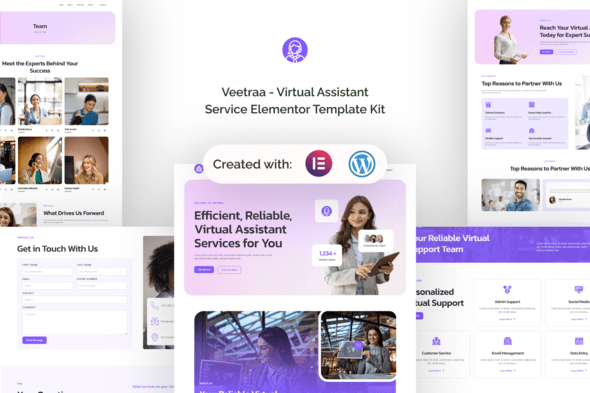
Veetraa – Virtual Assistant Service Elementor Template Kit
Verified
See scan report
1 Year
Updates
Verified file
Check whether a dated scan report is linked for this file. A scan cannot guarantee safety.
Analyzed with 68 engines · 0 threats detected
File: veetraa-virtual-assistant-service-elementor-temp-2024-08-14-10-07-25-utc.zip (3.8 MB)
SHA-256
0ea3f5daa230416c29087ec1e2e8a6e3f3ac85d358f4239a2847673db592728c
Introducing Veetraa a comprehensive template kit designed specifically for virtual assistant services, available exclusively for WordPress. With careful attention to detail and utilizing free plugins, Veetraa helps virtual assistants and service providers build a strong online presence without complex development. It’s tailored for virtual assistant agencies, remote service providers, and freelance
Note: Veetraa is not a traditional WordPress theme. Instead, it’s a complete template kit that includes all the necessary page content for the Elementor page builder, giving users the flexibility to design freely. While it’s optimized for use with the free Hello Elementor theme, Veetraa is compatible with most themes that support Elementor.
Suitable For:
- Virtual Assistant Agencies
- Remote Service Providers
- Freelance Professionals
Features:
- Using Free Elementor (Elementor Pro is not required)
- Unique & Clean Design
- Modern Design
- Build With Container
- 13 Ready to Use Pages
- Unlimited colors
- More than 900 Ready Fonts
- Fully Responsive Layout
- Fully Customizable Cross Browser Compatibility: Chrome, Firefox, Safari, Opera
Templates Included:
- Global Theme Style
- Home
- About
- Services
- Pricing
- Team
- Testimonial
- FAQ
- Error 404
- Blog Post
- Single Post
- Contact Us
- Header
- Footer
Required Plugin:
- Elementor
- ElementsKit Lite
- MetForm
- Gum Elementor Addon
- Elementor Header & Footer Builder
How to Import Metforms If you have Elementor Pro, skip install of Metform and form blocks.
- Import the metform block templates
- Import the page template where the form appears and right-click to enable the Navigator
- Locate and select the Metform widget and click Edit Form. Choose New, then Edit Form. The builder will appear
- Click ‘Add Template’ grey folder icon.
- Click ‘My Templates’ tab.
- Choose your imported metform template, then click ‘Insert’ (click No for page settings).
- Once the template is loaded, make any desired customizations and click ‘Update & Close’ The form will appear in the template
- Click Update
Setup Global Header and Footer in ElementsKit If you have Elementor Pro, headers and footers may be customized under Theme Builder.
- Import the header and footer template
- Go to ElementsKit > Header Footer and click Add New (if prompted with a wizard, you may click Next through it without taking any action)
- Title the header, leave Entire Site selected and toggle Activation to On
- Click the gray Edit Content button to load the builder
- Click the gray folder icon and select the header template to import, select your menu in the nav element and click Update.
- Repeat for Footer
Images This Template Kit uses demo images from Envato Elements. You will need to license these images from Envato Elements to use them on your website, or you can substitute them with your own.
Frequently Asked Questions
Review the listed version, filename and any file-verification details provided before installing the file.
When a newer file is available, you can download it from your account during your access period. Check the version shown on the product page.
GPL-covered code can generally be used on multiple sites. Check separately licensed images, other assets and vendor services before use.
Check the license terms that apply to each product. WPTemplateKit is an independent redistribution service and does not include an official developer license or support.
Related Products

Wait! Become a member and download it all
Instead of paying 3.99 € for just this file, join the Club and download it — plus the entire catalog — with unlimited downloads while your membership is active.
Or try everything first with the 24-Hour Pass — 4.99 €
Special for you
Still thinking it over?
Take the 24-Hour Pass and try everything for just 4.99 €: this file and the entire catalog, with full member access for 24 hours. One-time payment — no subscription, nothing to cancel.
Try 24 hours for 4.99 €