
 Automotive Transportation
Drivexy – Car Rental Elementor Template KitDrivexy – Car Rental Elementor Template Kit
1 Year
Updates
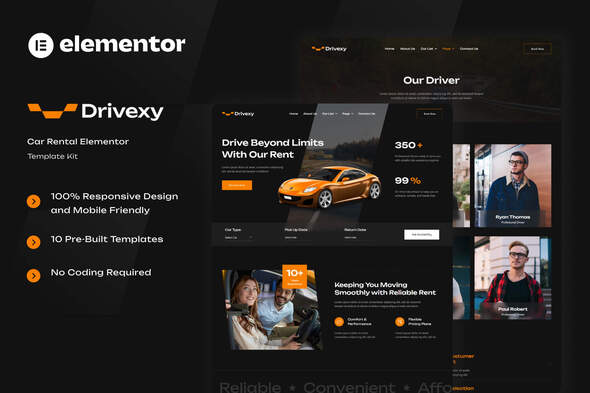
Drivexy is an fully responsive Elementor Template Kit designed for car rental and transport service businesses, offering a clean, modern, and professional design to help you build an impressive website with ease. Whether you’re running a car rental service, shuttle provider, or private driver business, Drivexy delivers a fully responsive and fast-loading experience optimized for the free Hello Elementor theme. This kit allows you to showcase your fleet, highlight your services, and simplify the booking process—all without writing a single line of code. Every page is built to enhance user experience and support your business goals.
Templates
- Home
- About Us
- Car List
- Car Detail
- Our Driver
- FAQ
- Testimonial
- Blog
- 404
- Contact Us
Font Used
- Unbounded
- Onest How to Use Template Kits: This is not a WordPress Theme. Template kits contain the design data for Elementor only and are installed using the envato Elements plugin for WordPress or directly through Elementor.
Elementor Template Kits use the Envato Elements plugin to install.
Plugins Installed with kit
- Elementor
- ElementsKit Lite
- Jeg Elementor Kit
- Metform
- Qi Addons For Elementor
- Ultimate Addons Elementor
Detailed Guide:
For further support, go to Elementor > Get Help in WordPress menu.
How to setup header in Jeg Elementor Kit plugin If you have Elementor Pro, setup headers and footers in Theme Builder. Pages you create with Elementor must have the Page Layout set to Elementor Full width for the global header and footer to appear.
- Go to Jeg Elementor Kit menu item > Header Template
- Click Add New Header
- Add condition > All Site and click Create
- Click the pencil icon to Edit and elementor will appear
- Click gray folder icon to access My Templates tab
- Insert the header template.
- Customize and Save.
How to Import MetForm Custom Form:
- While edititing a page where a form should appear, open the Elementor navigator to locate the Metform widget.
- Click Edit Form in the builder panel.
- Select New, leave blank selected then click Edit Form button.
- Click ‘Add Template’ grey folder button.
- Click ‘My Templates’ tab.
- Choose your imported MetForm template, then click ‘Insert’.
- Once the template is loaded, click ‘Update’.
Images This Template Kit uses demo images from Envato Elements. You will need to license these images from Envato Elements to use them on your website, or you can substitute them with your own.
Frequently Asked Questions
Review the listed version, filename and any file-verification details provided before installing the file.
When a newer file is available, you can download it from your account during your access period. Check the version shown on the product page.
GPL-covered code can generally be used on multiple sites. Check separately licensed images, other assets and vendor services before use.
Check the license terms that apply to each product. WPTemplateKit is an independent redistribution service and does not include an official developer license or support.
Related Products
Automotive Transportation
 Automotive Transportation
 Automotive Transportation
 Automotive Transportation
Wait! Become a member and download it all
Instead of paying 3.99 € for just this file, join the Club and download it — plus the entire catalog — with unlimited downloads while your membership is active.
Or try everything first with the 24-Hour Pass — 4.99 €
Special for you
Still thinking it over?
Take the 24-Hour Pass and try everything for just 4.99 €: this file and the entire catalog, with full member access for 24 hours. One-time payment — no subscription, nothing to cancel.
Try 24 hours for 4.99 €