
 Technology Apps
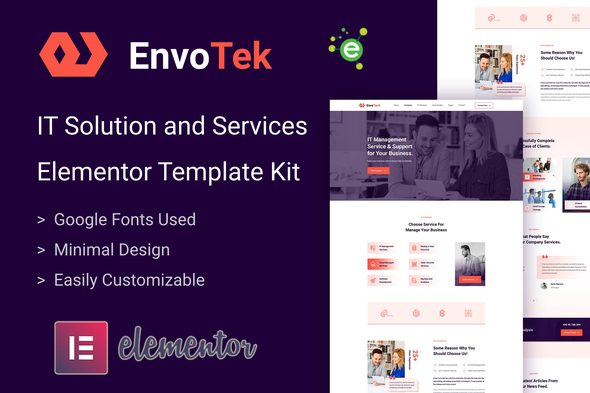
EnvoTek – IT Solution & Services Elementor Template Kit
Verified
See scan report
1 Year
Updates
Verified file
Check whether a dated scan report is linked for this file. A scan cannot guarantee safety.
Analyzed with 68 engines · 0 threats detected
File: envotek-it-solution-services-elementor.zip (3.0 MB)
SHA-256
de5bf8f03d32058a7457fd07a067d950b19eb172f86eea0d582b120d78be6a43
EnvoTek – IT Solution and Services Elementor Template Kit is specially designed for the Agency, IT Business, Marketing, Software Development Consulting, Start-up, IT Entrepreneur, SaaS & Software, Digital Solution, Technical Engineering, IT Solutions, and Services Company related business website.
EnvoTek – Templates
- Home Page
- About Page
- Services Page
- Service Details Page
- Projects Page
- Project Details Page
- Team Page
- FAQ Page
- Blog Page
- Blog-single Page
- Contact Page
- 404 Page
- Block/Sections
- Header Section
- Footer Section
- Brand Section
- Service Section
- Title Section
- Project Section
- Testimonial Section
- Contact Section
- Post Section
- Hero Section
- Banner Section
- Video Banner Section
- FAQ Section
- Team Section
- Contact Section
EnvoTek – Features
- No Elementor Pro needed
- 12 Incredible Template Pages
- 15 Different Sections Templates
- 27 Awesome Elements Templates
- Clean, Professional and Unique Design
- Google Fonts – easily expand to 600 Google Fonts
- and much more!
Required Plugins
No pro or premium plugin required. All of these are Free plugin from WordPress.org
- Elementor
- ElementsKit Lite
- Elementor – Header, Footer & Blocks
- MetForm
How to Install:
- Install and Activate the “Envato Elements” plugin from Plugins > Add New in WordPress
- Do not unzip
- Go to Elements > Installed Kits and click the Upload Template Kit button.
- Before importing a template, ensure the Install Requirements button is clicked to activate required plugins
- For best results, do not import more than one template at a time.
For further support, go to Elementor > Get Help in WordPress menu.
How to import Metforms and content blocks
- Import the metform block templates
- Import the page template where the form appears and right-click to enable the Navigator
- Locate and select the Metform widget and click Edit Form. Choose New, then Edit Form. The builder will appear
- Click ‘Add Template’ grey folder icon.
- Click ‘My Templates’ tab.
- Choose your imported metform template, then click ‘Insert’ (click No for page settings).
- Once the template is loaded, make any desired customizations and click ‘Update & Close’ The form will appear in the template
- Click Update
Setup Global Header and Footer in Header Footer & Blocks plugin
- Import the header and footer template
- Go to Appearance > Header Footer and click Add New button
- Give it a title and select Header, Display on Entire Site and click Publish
- Click Edit with Elementor
- Click the gray folder icon to access My Templates tab and select the header template to import and Update.
- Repeat for Footer
This Template Kit uses demo images from Envato Elements. You will need to license these images from Envato Elements to use them on your website, or you can substitute them with your own.
Change log
- Initial release
Frequently Asked Questions
Review the listed version, filename and any file-verification details provided before installing the file.
When a newer file is available, you can download it from your account during your access period. Check the version shown on the product page.
GPL-covered code can generally be used on multiple sites. Check separately licensed images, other assets and vendor services before use.
Check the license terms that apply to each product. WPTemplateKit is an independent redistribution service and does not include an official developer license or support.
Related Products

Wait! Become a member and download it all
Instead of paying 3.99 € for just this file, join the Club and download it — plus the entire catalog — with unlimited downloads while your membership is active.
Or try everything first with the 24-Hour Pass — 4.99 €
Special for you
Still thinking it over?
Take the 24-Hour Pass and try everything for just 4.99 €: this file and the entire catalog, with full member access for 24 hours. One-time payment — no subscription, nothing to cancel.
Try 24 hours for 4.99 €