
 Technology Apps
Jarvis – Cyber Security Services Elementor Template Kit

Verified
See scan report
1 Year
Updates
Verified file
Check whether a dated scan report is linked for this file. A scan cannot guarantee safety.
Analyzed with 66 engines · 0 threats detected
File: jarvis-cyber-security-services-elementor-templat-2024-08-09-06-01-26-utc.zip (1.3 MB)
SHA-256
9d456936bffd4bf0d1aae9032186f50da56db8ef9a97aea2d78cf93ca3ef4d4c
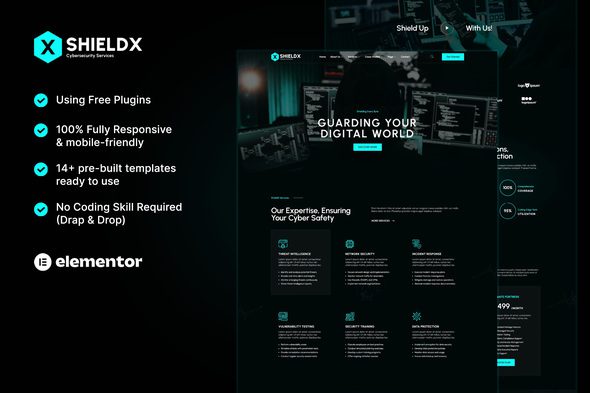
Jarvis is a modern Elementor Template Kit built specifically for cyber security companies, IT solution providers, and technology consultants. Featuring a sleek and professional design, Jarvis helps you establish a powerful online presence that conveys trust, innovation, and digital protection.
With 17+ beautifully crafted templates, Jarvis makes it easy to build a professional and fully responsive website—no coding required. Effortlessly customize each section to match your brand identity and showcase your services, expertise, and case studies with confidence.
Important: This is an Elementor Template Kit. Do not use WordPress Tools > Import. Install the Template Kit Import plugin (Plugins > Add New > search “Template Kit Import” by Envato), then go to Tools > Template Kit to import.
Features:
- Fully With Elementor Free Version (Elementor Pro is not required)
- Simple, Modern and Clean Design
- No Coding Knowledge Required
- 17+ Ready To Use Templates
- Responsive & Retina Ready
- Easy & Fully Customizable
Templates Include:
- Global Kit Styles
- Home
- About
- Services
- Services Detail
- Our Works
- Pricing
- Team
- Testimonials
- Blog
- Single Post
- Contact
- Form Contact
- FAQ
- 404 Page
- Header
- Footer
Plugins installed with kit:
- Jeg Elementor Kit
- MetForm
How to Use Template Kits:
This is not a WordPress Theme. Template kits contain the design data for Elementor and are imported using the Template Kit Import plugin via Tools > Template Kit.
- Plugins > Add New → search “Template Kit Import” (by Envato) → Install & Activate
- Go to Tools > Template Kit
- Upload your Template Kit ZIP
- Click “Install Requirements”
- Import “Global Kit Styles” first, then the pages/parts you need
Help & Support
Need more help? Choose an option below:
For further support, go to Elementor > Get Help in WordPress menu.
How to Import Metforms
- Import the metform block templates
- Import the page template where the form appears and right-click to enable the Navigator
- Locate and select the Metform widget and click Edit Form. Choose New, then Edit Form. The builder will appear
- Click ‘Add Template’ grey folder icon.
- Click ‘My Templates’ tab.
- Choose your imported metform template, then click ‘Insert’ (click No for page settings).
- Once the template is loaded, make any desired customizations and click ‘Update & Close’ The form will appear in the template
- Click Update
This Template Kit uses demo images from Envato Elements. You will need to license these images from Envato Elements to use them on your website, or you can substitute them with your own.
Frequently Asked Questions
Review the listed version, filename and any file-verification details provided before installing the file.
When a newer file is available, you can download it from your account during your access period. Check the version shown on the product page.
GPL-covered code can generally be used on multiple sites. Check separately licensed images, other assets and vendor services before use.
Check the license terms that apply to each product. WPTemplateKit is an independent redistribution service and does not include an official developer license or support.
Related Products


Wait! Become a member and download it all
Instead of paying 3.99 € for just this file, join the Club and download it — plus the entire catalog — with unlimited downloads while your membership is active.
Or try everything first with the 24-Hour Pass — 4.99 €
Special for you
Still thinking it over?
Take the 24-Hour Pass and try everything for just 4.99 €: this file and the entire catalog, with full member access for 24 hours. One-time payment — no subscription, nothing to cancel.
Try 24 hours for 4.99 €